
01. MY EQUIPMENT:
Your kit includes the following items:
-
as prescribed by your doctor, a blood pressure monitor comprising a main unit and a cuff;
-
a set of scales;
-
a set of batteries;
-
a quick-start guide;
-
a packaging box with a divider, which you should keep so that you can transport the kit occasionally or return the equipment at the end of your monitoring period;
-
optionally, a tablet with its charger.
A set of batteries is provided in the kit so that you can replace the batteries already fitted when they run out. You will need to purchase any additional batteries yourself (AAA batteries).
The cuff supplied with the blood pressure monitor is suitable for an arm circumference of between 22 and 42 cm. If you require a cuff suitable for an arm circumference of between 42 and 48 cm, please contact Newcard to request one.
Please take the utmost care of the equipment provided to you throughout the time of your monitoring.
The tablet, where supplied, is for strictly personal use only and must be used solely within the ‘Newcard’ app. Any other use may affect its proper functioning.
02. USER GUIDE:
The ‘Newcard’ app is a remote monitoring tool for chronic heart failure, enabling you to send your readings – including weight, blood pressure, heart rate and blood test results – to your healthcare professionals on a regular basis. The aim of this system is the potential early detection of cardiac decompensation.
The UDI-DI code for the MPC patient app is 3770034348016 and the UDI-DI code for the MPR app is 3770034348023.
NEWCARD makes the App available to patients pursuant to the Order of 22 June 2023 adding medical telemonitoring activities to the list provided for in Article L. 162-52 of the Social Security Code, on the basis of Article 36 of Law No. 2021 -1754 of 23 December 2021 on social security funding for 2022.
 This Class I medical device accessory is a regulated healthcare product which, in accordance with these regulations, bears the CE marking.
Year of publication of the latest version of the user guide: 2026
If needed, a printed version can be provided upon request at the following address: https://newcard.io/contacts/ or via email at cardio@newcard.io.
There are no additional costs involved and the user manual will be delivered to you at the latest within seven calendar days of receipt o f the request.
03. DESCRIPTION OF THE SYMBOLS ON THE LABELLING:
04. INTENDED USE:
"1 Minute pour mon Coeur" (1 Minute For My Heart) is a software as a medical device intended for the telemonitoring of patients suffering from chronic heart failure through the collection, analysis, storage, and visualization of health data. The patient application enables the collection of your data for processing by the Newcard algorithm.
Eligibility criteria:
Patients suffering from chronic heart failure, regardless of the type and etiology of the disease, who meet one of the following two conditions:
- Hospitalization within the past 12 months for a heart failure flare-up;
- OR currently in NYHA class 2 or higher.
05. INDICATIONS:
By default, you should measure your blood pressure and weight daily. However, your cardiologist may adjust the frequency of these measurements to suit your needs.
To ensure the reliability of the data transmitted, it is recommended that you take these measurements whilst at rest.
Before you begin, please ensure your equipment is set up correctly:
-
the connected tablet / phone and blood pressure monitor must be placed on a table;
-
the scale must be placed on a flat, stable and rigid surface. Avoid placing them on a carpet or rug;
-
have a chair ready so that you can sit comfortably whilst having your blood pressure taken.
When weighing yourself, make sure you place the tablet down before stepping onto the scale, so as not to distort the reading.
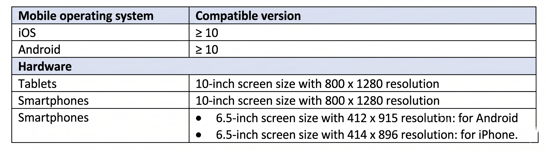
Technical specifications and requirements:
-
An internet connection is required to use the app.
-
The optional tablet supplied by Newcard is equipped with a 4G SIM card enabling internet access.
06. PRECAUTIONS:
-
This device is for personal use only.
-
The Newcard service is not an emergency service; it is not intended to replace interventions by healthcare professionals. If you have any medical questions or if your condition suddenly worsens, please contact a healthcare professional or call your local emergency services.
-
The kit is a loan granted to you by Newcard for the duration of your telemonitoring. At the end of your monitoring period, you are required to return the equipment provided to you as soon as possible and in the same condition as when you received it.
-
Preventive and routine maintenance operations: Newcard may modify or adapt the NEWCARD application or the General Terms and Conditions of Use. In this case, an update on your part may be required. In accordance with the Terms of Use, this update must be carried out promptly.
-
Residual risks: the software has no direct physical contact with the patient and poses no mechanical, electrical or biological risk. The residual risks identified are of a technical or software nature; although rare, they may, in certain situations, have an indirect impact on patient care. The main residual risks associated with the use of this software are described below.
-
-
- Appropriate technical and organisational measures have been put in place to ensure the platform remains available. Despite these controls, there remains a residual risk that the platform may be temporarily unavailable until it is restored (in the event of an internet connection failure, a technical error, etc.).
- The platform incorporates mechanisms designed to ensure the reliability of the alerts it generates. Nevertheless, a residual risk of alert errors—including, in particular, false positives, false negatives, duplicates or alerts not being displayed—cannot be entirely ruled out.
- Despite the controls in place, errors may occur in the transmission of patient measurements (failure to transmit data, or data that is inaccurate or unreliable).
- Newcard has implemented appropriate cybersecurity measures to ensure the security of all data transmitted. However, a residual risk of loss, alteration or unauthorised access to this data cannot be entirely ruled out. In any event, Newcard is committed to safeguarding users’ privacy and complying with applicable data protection regulations, in particular the GDPR.
-
07. MEASUREMENTS:
- Turn on your tablet by pressing the small button on the right.
- Tap the NEWCARD icon on the screen.
- Tap "Take my measurements". The date of your next measurement is shown as an indication.
.jpg?width=242&height=538&name=1%20(1).jpg)
-
Please follow the instructions displayed on your tablet and click on "Continue demo"
Note: If your kit does not include a blood pressure monitor because blood pressure measurement has been disabled by your doctor, the following step will not be available. Please proceed directly to the weight measurement step.
-
Sit down and relax. Place the cuff around your left arm and adjust it.
-
The red band on the cuff must be positioned over the inside of the elbow crease.
-
Place your left arm on a table with the palm of your hand facing upward.
-
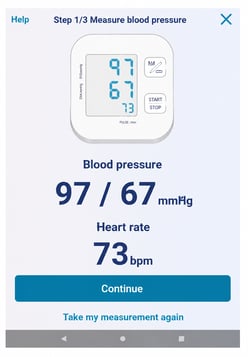
Press the "Start / Stop" button on the blood pressure monitor.
The cuff will inflate and then deflate. When the cuff is completely deflated, press the "M/" button..jpg?width=244&height=542&name=2%20(1).jpg)
-
You can still enter your blood pressure and heart rate manually by tapping "Enter my data manually". Your blood pressure and heart rate will be displayed on the tablet. Tap "Continue"
- Step onto your scale.
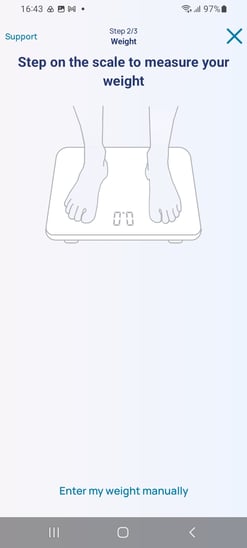
- When the measurement is displayed, tap "Continue".
You can always manually enter your weight by selecting "Enter my data manually". - Answer the question: I feel the same as usual / I don't feel as well as yesterday.
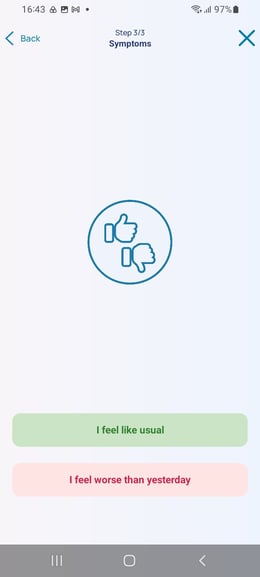
- If you feel worse than yesterday, select the symptom(s) or discomfort(s) you are experiencing.
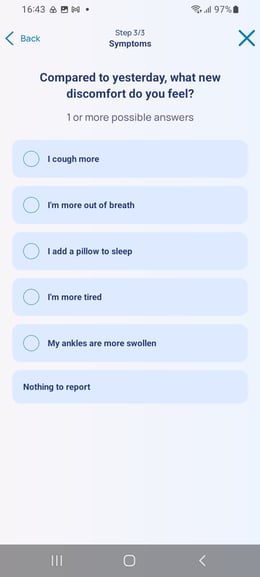
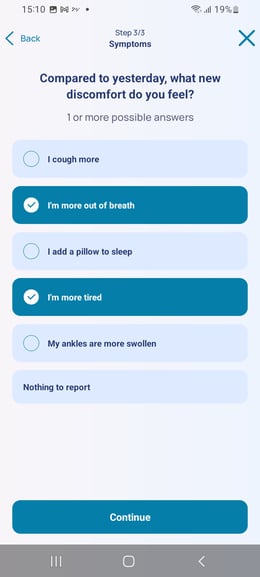
-
Tap "Continue". Your data has been successfully sent. Select "Home screen".
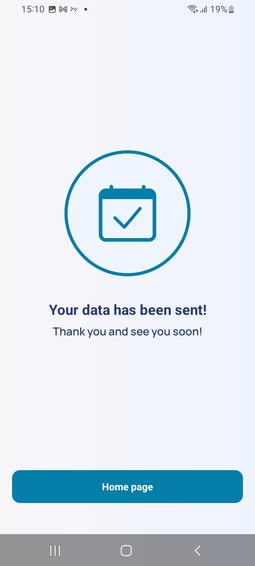
Turn off the tablet: press the power button for three seconds. A pop-up will appear: select "Shut down".
08. POSTING OF BIOLOGICAL TEST RESULTS:
When your cardiologist prescribes a lab tests, you can enter your results into the app as soon as you receive them.
You can only enter one lab test report per day. In the application, enter the date of your test, then navigate between the different tabs to fill in the values shown on your lab report.
Lab tests are organised into several categories to make it easier for you to enter your data:
-
Biochemistry;
-
Cardiac parameters;
-
Haematology;
-
Test report photo, which allows you to add a photograph of your results.
Your lab data will appear directly on your cardiologist's platform, where they can review it and access a dated history of your results.
Enter your laboratory test results
-
Upon receipt of your results, you can enter them into the NEWCARD application.
Tap: "+ Lab tests" then "Start".
.jpg?width=249&height=553&name=1%20(1).jpg)
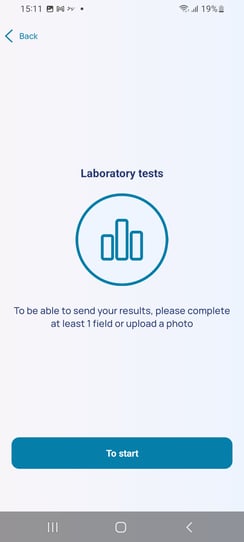
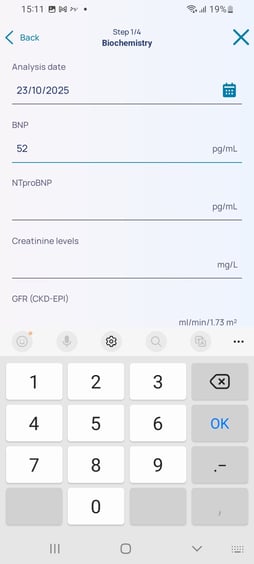
2. Enter the date of the test results
Enter the date of your blood test results.
You can:
-
-
type the date directly using the keyboard;
-
or select the calendar icon to choose the date you want.
-
Once you have selected the date, click ‘Continue’.
3. Navigating between the different sections
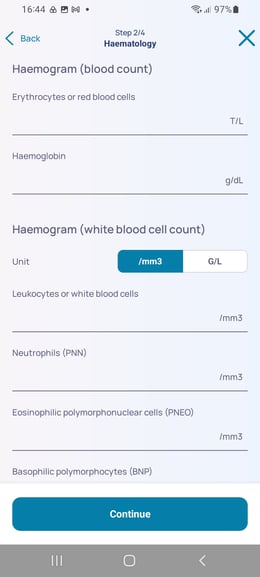
The entry of your laboratory test results is organised into several sections to make it easier for you to enter your results.
You will find the following sections:
-
Biochemistry;
-
Cardiology parameters;
-
Haematology;
-
Photos;
-
Submission.
To move from one section to another, click on ‘Continue’.
4. Enter your results
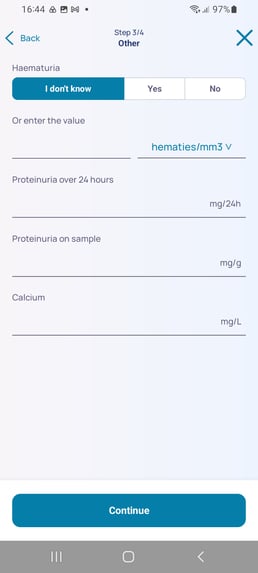
In each section, you will see a list of fields that you can complete.
To scroll through the list, place your finger on the screen and swipe upwards from the bottom.
Only enter the details for which you have information from your blood test results.
To enter a value:
-
Select the field you wish to complete;
-
The numeric keypad will appear on the screen;
-
Enter the corresponding value by selecting the digits.
Once you have entered all the available data for a category, select ‘Continue’ to move on to the next section.
5. Add a photo of your test results
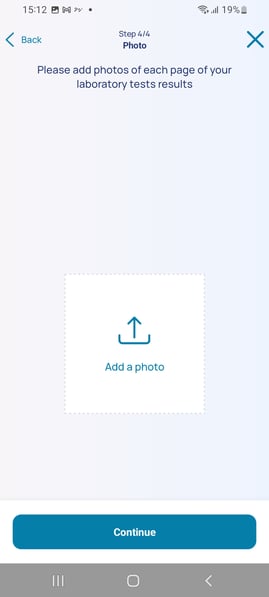
Once you have entered your details, you can add one or more clear, legible photos of your results.
To do this:
-
Select ‘Add a photo’, then ‘Take a photo’.
-
Allow the app to access the camera if prompted;
-
Position your document correctly, then select ‘Take a photo’ to take the photo;
-
Once the photo has been taken, confirm it by selecting ‘Continue’.
You can add further photos by selecting the ‘+’ symbol.
If you are not satisfied with the photo, select ‘Retake photo’ to take a new one.
6. Check and submit your details
Once you have filled in your details and added your photo, you can still edit the information you have entered.
After checking that all the information is correct, select ‘Submit’.
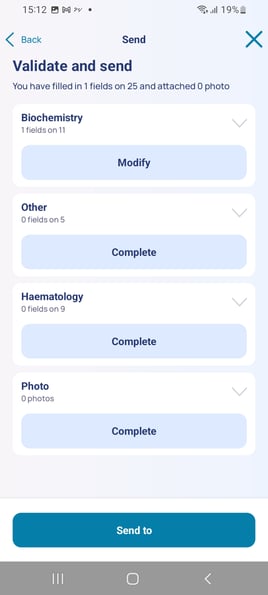
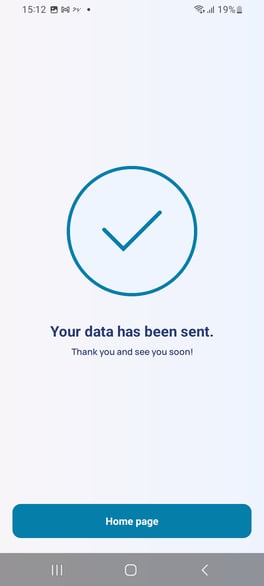
7. Complete the entry
Once you have submitted the form, your details have been successfully sent.
Select ‘Home’ to return to the main screen.
- Press and hold the power button for about three seconds;
- A window will appear on the screen;
- Select ‘Turn off’.
09. VIEWING STATISTICS:
You can view your clinical data history in the form of tables and graphs.
To access your data, tap the ‘Data’ tab at the bottom of the home page.
In particular, you can view trends in your weight, blood pressure and heart rate. To view a graph, simply select the data you wish to view.
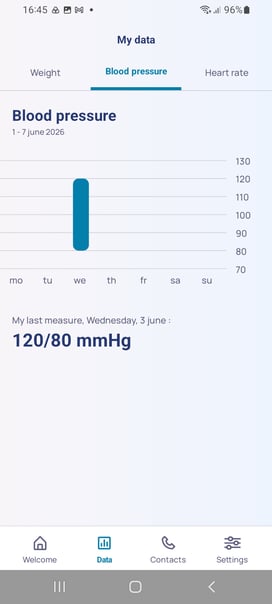
To return to the home screen, tap ‘Home’.
To switch off the tablet/phone: press and hold the power button for three seconds. A pop-up window will then appear: tap ‘Switch off’ to confirm.
10. VIEWING HISTORY LOGS:
You can also view your history of measurements and lab test by scrolling down on the home page.
In the "Measurements" tab, you will find your history of weight, blood pressure and heart rate.
In the ‘Biology’ tab, you can view your history of laboratory test results.
Select the date you are interested in, then tap the arrow to open the relevant laboratory test results.
To return to the home screen, tap ‘Home’.
To switch off the tablet/phone: press and hold the power button for three seconds. A pop-up window will then appear: tap ‘Switch off’ to confirm that you wish to switch off the tablet.
11. NOTIFY OF AN ABSENCE:
On the home screen, tap "Report an absence".
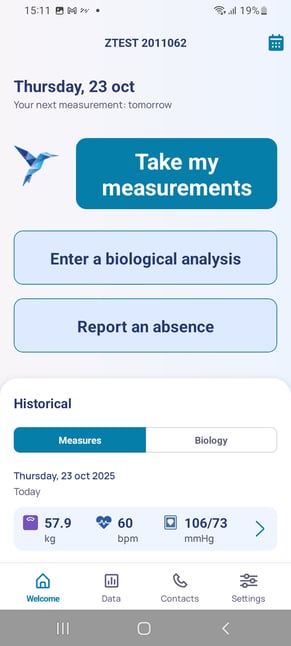
Select the reason for your absence by tapping:
-
"Personal reason",
-
"Hospitalization for heart condition",
-
or "Other hospitalization".
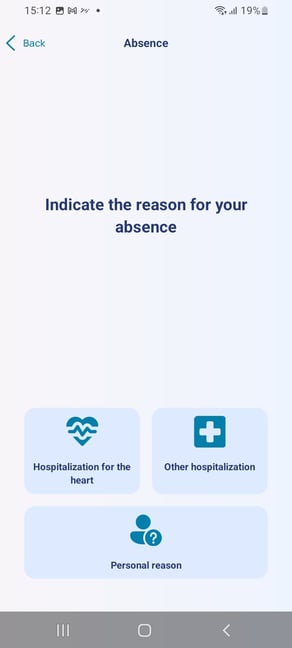
Specify your absence by selecting your departure and return dates, then tap "Send my absence".
Your absence has been successfully sent. Return to the home screen by tapping "Home screen".
12. MY HEALTHCARE TEAM:
From the home page, select the ‘Contacts’ tab to find the Newcard helpline number, as well as other useful contact details.
To return to the home page, select ‘Home’.
13. SETTINGS:
In the ‘Settings’ tab, you can view and manage various details and features, including:
-
your connected devices and your mobile phone;
-
your National Insurance number;
-
the option to change your password;
-
activating and using a PIN code;
-
the Legal Notice for Use of the app;
