
Skip to content
English


Technical support

For any problem you encounter, please start by testing the various options listed below. Follow the solutions with the help of the symbol glossary.
Technical FAQ
Tablet or mobile app issues
The tablet will not turn on

Plug the tablet into the mains for several hours, then try switching it on again.
To switch it on, press and hold the power button for 3 seconds.

The following message appears: "Please allow the use of Bluetooth"
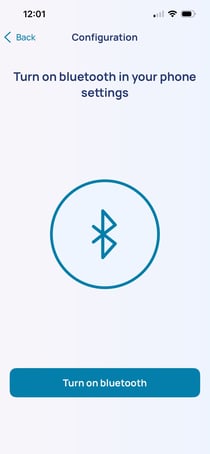
Image - 2026-09-09T120231.199

Enable Bluetooth:
1. Select "Turn on bluetooth" to enable Bluetooth automatically

2. Then select "Allow". 

You can check that Bluetooth is switched on by swiping your finger from the top to the bottom of the screen. Make sure the ‘Location’ icon is switched on.


The error message appears: "No internet connection."
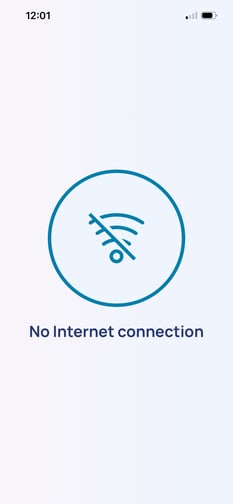
Image - 2026-09-09T120236.538

1. Switch off the phone/tablet by holding down the power button for 3 seconds.

2. A pop-up window will appear: select ‘Switch off’.

3. Wait until the device has switched off completely.

4. Switch it back on by holding down the power button for 3 seconds.

5. Repeat the measurement.

If the message is still displayed, contact Newcard customer service.

The following message appears: "Turn on your location in settings"
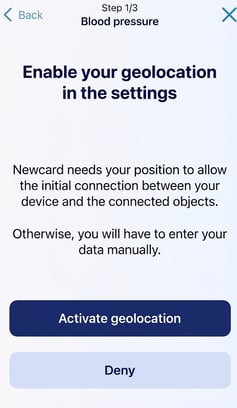
 

1. Select “Activate geolocation

2. Allow the app to access your location in the settings.

You can check that location services are enabled by swiping your finger from the top to the bottom of the screen.

The following message appears: "Error loading data. Please try again"

Start by selecting “Charge”.

If the problem persists:

1. Switch off the phone or tablet by holding down the power button for 3 seconds.

2. When the window appears, select “Power off”.

3. Wait until the device has switched off completely.

4. Switch it back on by holding down the power button for 3 seconds.

If the problem persists after restarting, contact Newcard support.

The tablet goes into "Reboot" or "Safe" mode.

Press and hold the power button for 8 seconds,  until the tablet  / phone restarts.

Scale issues
The scale displays the word "LO"

The message ‘LO’ indicates that the scales’ batteries are low.

1. Turn the scales over.

2. Replace the batteries with new AAA batteries.

3. Take the measurement again as usual.

When measuring weight, an error message appears: "The application has stopped working."

This message may be due to a power supply issue with the scales.

1. Turn the scales over.

2. Replace the batteries with new AAA batteries.

3. Take your measurement again as usual.

If the problem persists after changing the batteries, please contact Newcard support.

Blood pressure monitor issues
Blood pressure monitor will not turn on.

The blood pressure monitor’s batteries may be running low.

1. Turn the blood pressure monitor over.
2. Replace the batteries with new AAA batteries.
3. Switch the blood pressure monitor back on and take your reading again.

If the blood pressure monitor still does not switch on, contact Newcard support.

The blood pressure monitor displays 'Er 0'.

1. Check that the cuff is correctly positioned on your arm.
2. Take the reading again, remaining still throughout the measurement.
3. Wait until the measurement is complete and check that the readings are displayed correctly.

If the message ‘Er 0’ reappears, contact Newcard support.

The blood pressure monitor displays 'Er 4'.

Check the position of the cuff

Reposition the cuff correctly and tighten it further, without making it uncomfortable.

Check the connection between the cuff and the unit

Check that the cuff tube is correctly and fully inserted into the blood pressure monitor unit.

Then take the measurement again.

If the message ‘Er 4’ reappears despite these checks, contact Newcard support to arrange for the cuff to be replaced.

When taking a blood pressure measurement, an error message appears: 'The application has stopped working'.

This message may be due to a power supply issue with the blood pressure monitor.

1. Turn the blood pressure monitor over.

2. Replace the batteries with new AAA batteries.

3. Switch the blood pressure monitor back on.

4. Take your measurement again.

If the message ‘The app has stopped working’ reappears after changing the batteries, please contact Newcard support.

Need help?

If the problem persists or if you encounter a technical issue that is not mentioned in this guide, please contact Newcard support:

  • France: 03 20 14 71 14

  • Belgium: +32 78 48 16 93